

A Discussion is a recorded human conversation: a standup, a design review, an incident retro. SageOx turns it into context: a transcript, a summary, and the decisions worth keeping. Here's the phone app's first-recording flow, in the order it actually happens.
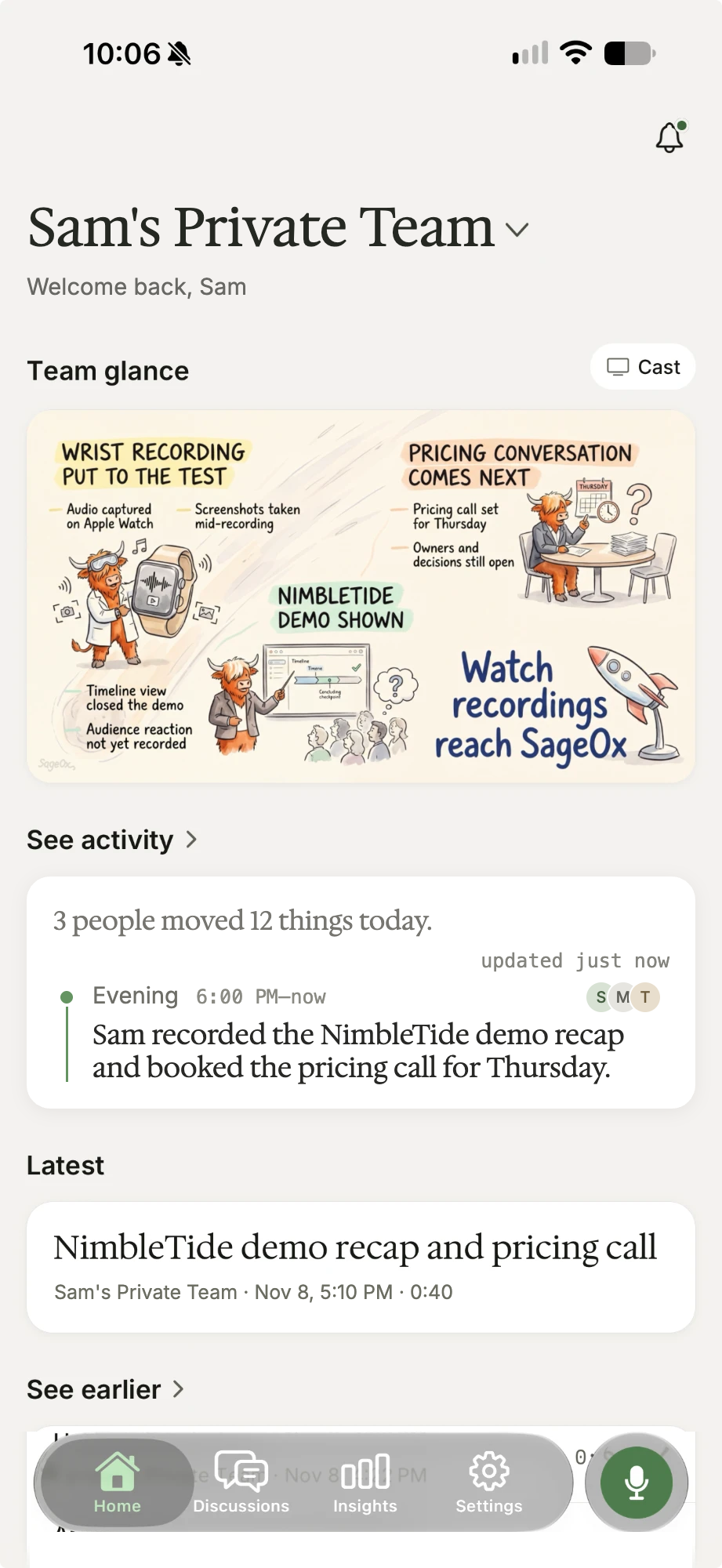
Start recording
Tap the raised record button on Home, then pick the team this conversation belongs to. Workspace scope decides who can see it.
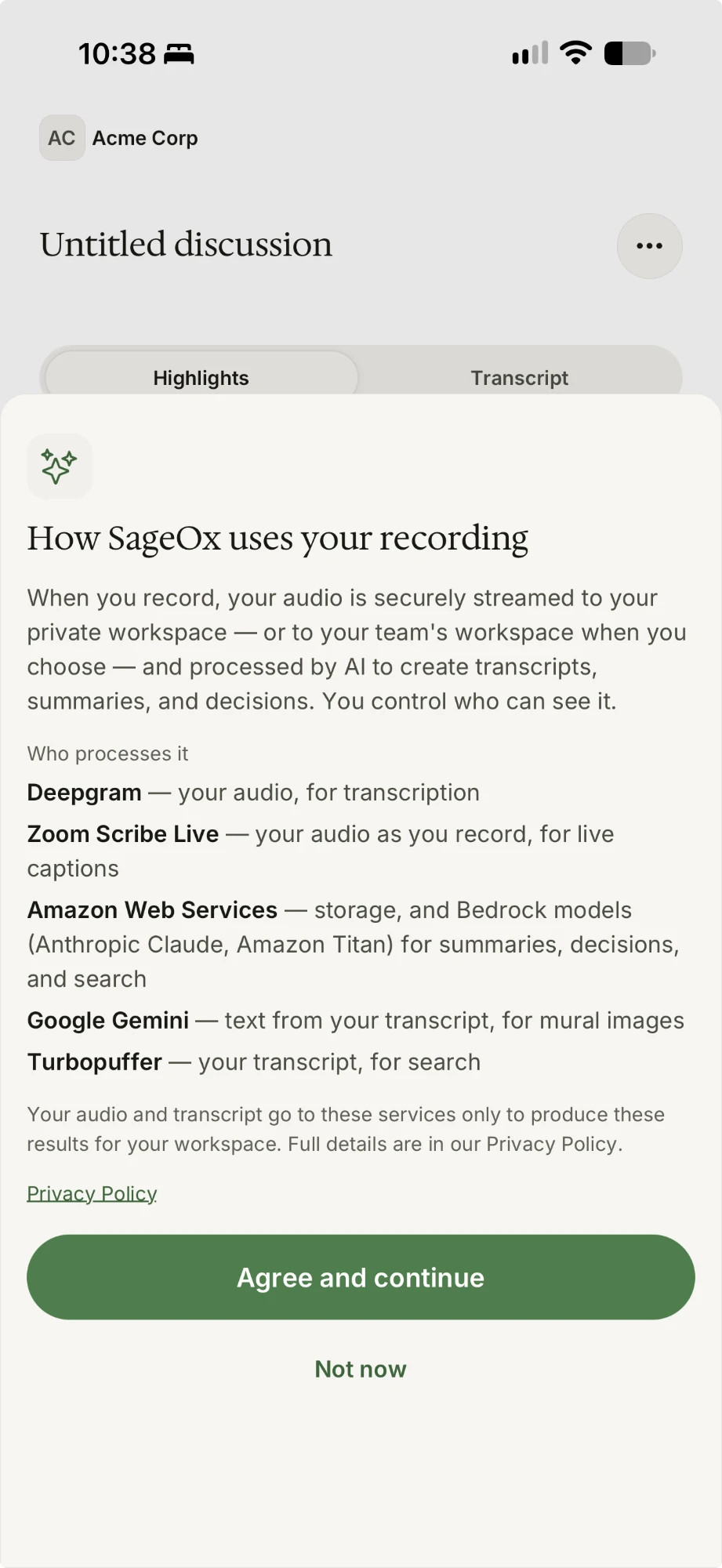
First recording only: agree to how SageOx uses your recording. A one-time sheet explains that your audio is securely streamed to your private workspace and processed by AI to create transcripts, summaries, and decisions. It names each service that processes it and links the full Privacy Policy. Tap Agree and continue: recording can't start until you do. (Not now backs out without recording.)
First recording only: allow microphone access. SageOx asks only when you're about to record (never at install, never at launch), and explains why first. Tap Allow.
Recording starts. A live elapsed timer and a breathing "recording" presence confirm capture is running. Audio streams to your private workspace as you talk, and a local copy stays on the phone until the server confirms receipt, so nothing is lost if your connection blinks.
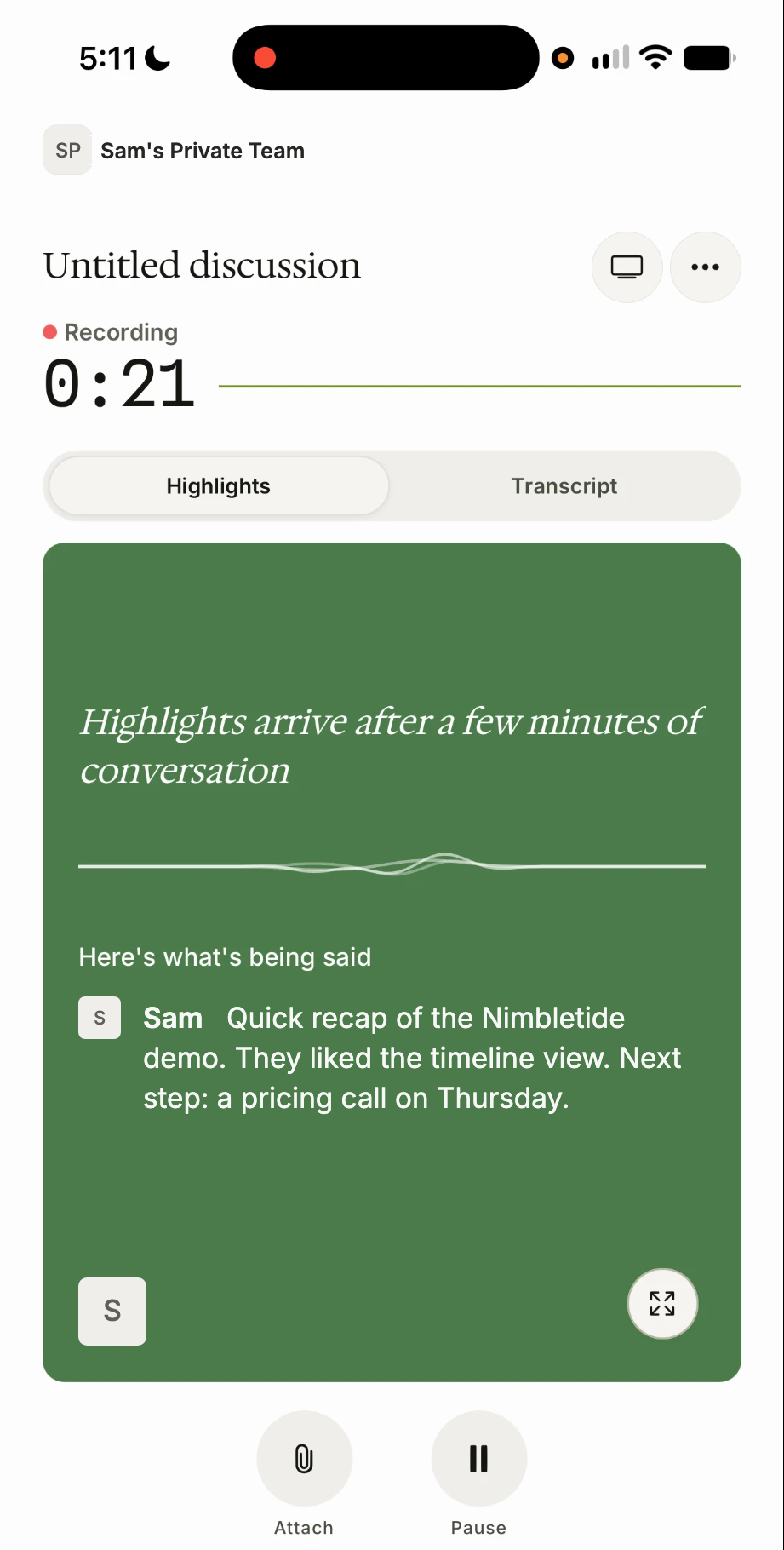
Tap the red Stop button at the bottom right when the conversation ends. Transcription and extraction start on their own.
The consent and microphone steps happen once per account, not on every recording. After the first time, tapping the record button goes straight to recording.
What it becomes
When the pipeline finishes, your recording is no longer only audio. It's context.
The transcript, summary, and extracted decisions commit to your Team Context: the shared knowledge every coworker, human or AI, reads. An AI coworker picks it up the next time it runs ox agent prime.
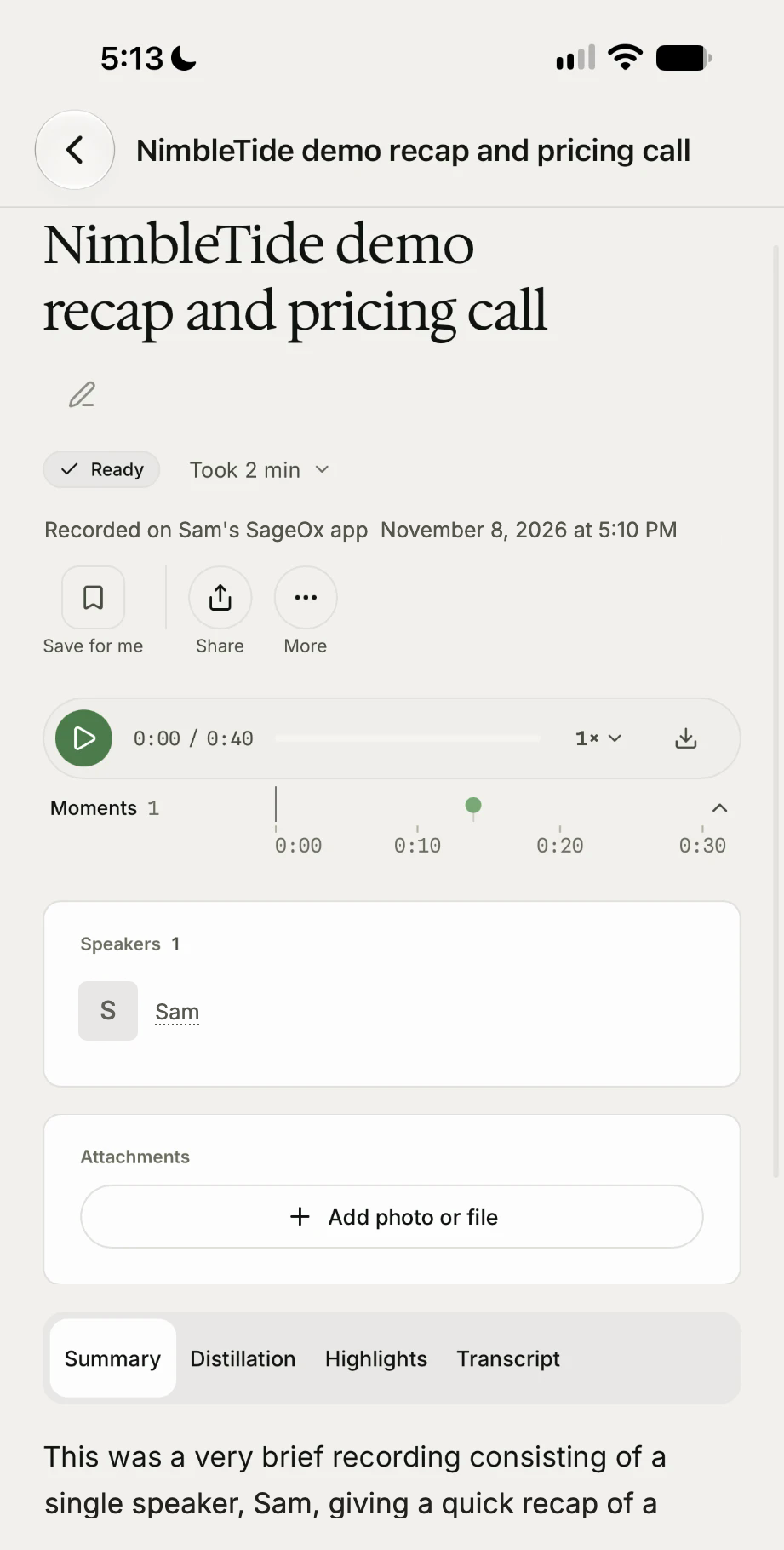
A recording's audience is its team. Choose the right team before you record, and only that workspace can see it.
What's next
- Team Context: where your captured discussion lives.
- Get the most out of SageOx: turn one recording into a daily habit.