

Record a Discussion from your wrist. The Watch records with its own microphone, so your iPhone can stay in your pocket.
Before you start
| Device | Requires |
|---|---|
| iPhone | iOS 17.2 or later for the SageOx app. A Watch on watchOS 27 pairs with an iPhone on iOS 27. |
| Apple Watch | watchOS 27 or later: Series 9 or later, Ultra 2 or later, or SE (3rd generation). |
Set up the Watch
Install SageOx on your iPhone from the App Store and sign in with the account you use on the web.
Open the Watch app on your iPhone, find SageOx in the list of apps, and tap Install.
On your iPhone Home, tap Set up on the Record from your wrist card. If you tapped Not now, open Settings and tap Apple Watch.
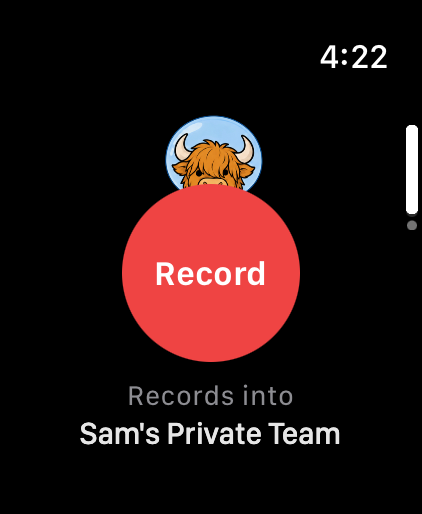
Open SageOx on your Watch and keep SageOx open on your iPhone. Setup finishes on its own, and the iPhone shows Your watch is ready. Under Records into, the Watch shows the team your recordings go to. That team decides who can see the Discussion.
Record from your Watch
Open SageOx on your Watch and tap Record.
Talk as usual. Tap Pause to hold the recording and Resume to continue.
Tap Stop when the conversation ends.
What happens after you stop
When you tap Stop, the Watch sends the recording to your team itself, over Wi-Fi, cellular, or your iPhone's connection. It keeps its copy until SageOx confirms the recording arrived, so nothing is lost if the upload is interrupted. If the Watch can't upload on its own, it passes the recording to your iPhone.
The Watch lists each recording and shows Uploading, then Uploaded. From there the recording becomes context like any other: a transcript, a summary, and decisions that commit to your Team Context.
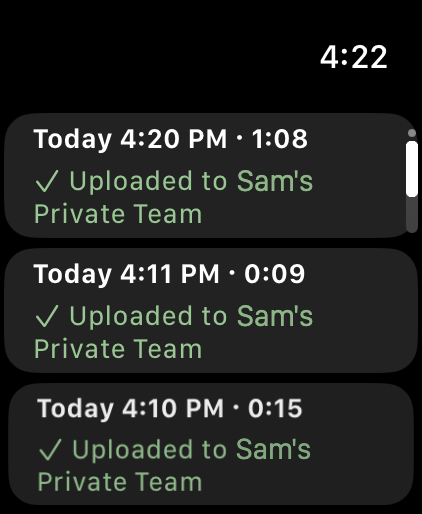
If the Watch says Waiting to upload · Open SageOx on iPhone, the recording moved to your iPhone. Open the app on your iPhone to send it.
Fix common snags
- The Watch says "Open SageOx on your iPhone." Open the app on your iPhone and sign in. The iPhone shares your account and team with the Watch.
- The Watch asks you to choose a team. Open SageOx on your iPhone and pick a team there.
- SageOx isn't in the Watch app's list. Update the Watch to watchOS 27 and the iPhone to iOS 27. A device that is not updated isn't offered the Watch app.
- A recording hasn't appeared in your team. Check the status under the recording on your Watch. If it says Waiting for network, join Wi-Fi or stay near your iPhone. If it says Open SageOx on iPhone, open the app. See troubleshooting if it stays stuck.
What's next
- Record your first discussion: the same flow from your iPhone.
- Troubleshooting: the common snags and the one fix for each.