

Cap setup
Cap is a video editing app with built-in screen recording. We recommend it for SageOx because you get full control over export settings and recordings stay local until you're ready to share.
Why Cap
| Feature | Cap | Loom |
|---|---|---|
| Export control | Full resolution/fps/quality control | Limited options |
| Local storage | Files stay on your machine | Uploads immediately |
| Cost | Free | Free tier has limits |
| Editing | Trim, cut, annotate before export | Basic trimming only |
For quick, one-off recordings, Loom works fine. For regular walkthroughs where you want consistent quality and file sizes, Cap is better.
Recommended export settings
After recording, open Cap's export dialog and configure these settings:
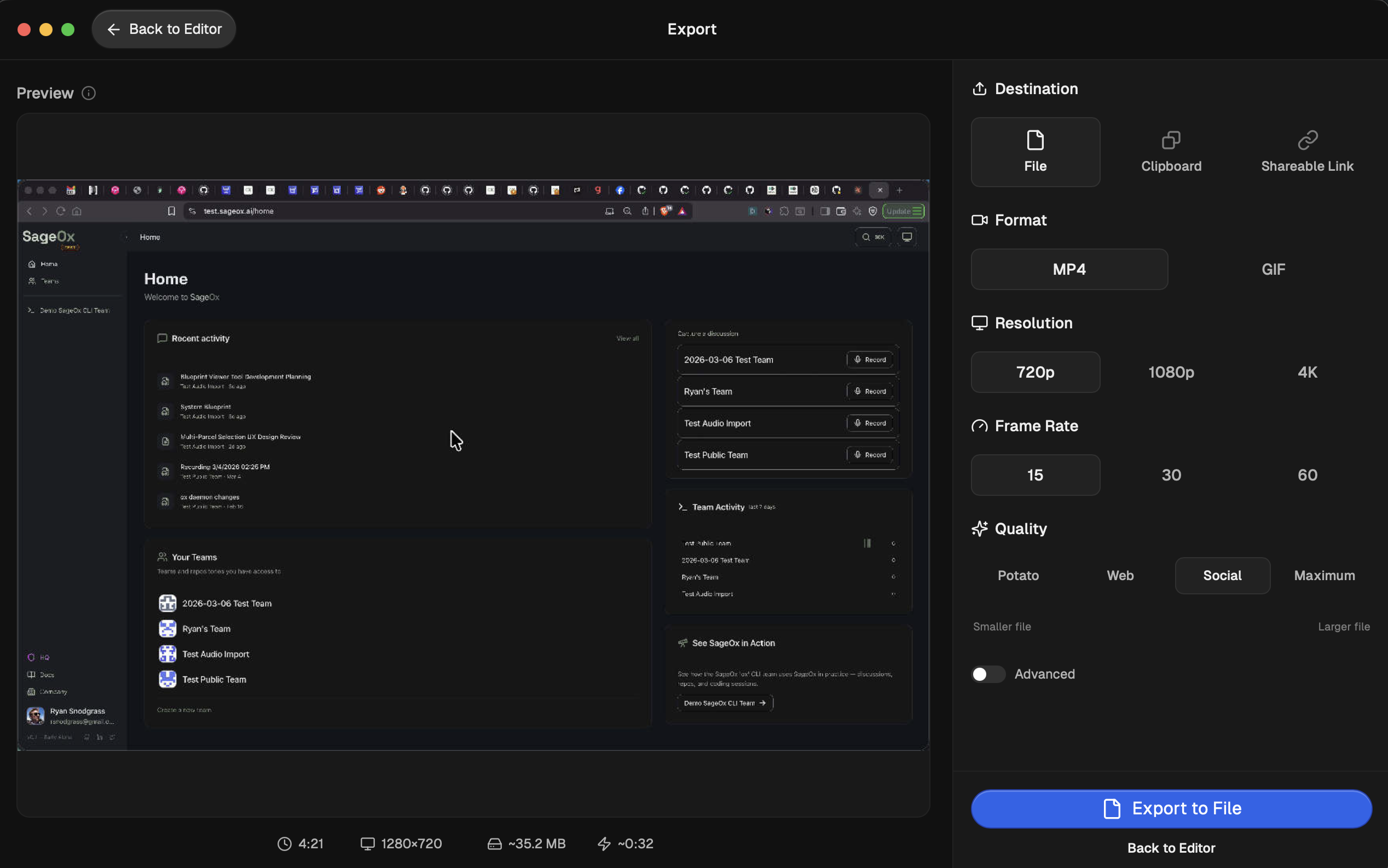
| Setting | Value | Why |
|---|---|---|
| Format | MP4 | Universal compatibility, best compression |
| Resolution | 720p | Sufficient for UI walkthroughs, fast to process |
| Frame Rate | 15 fps | Smooth enough for demos, half the data of 30fps |
| Quality | Social | Best size-to-quality ratio for AI extraction |
Expected file sizes
These settings produce predictable file sizes:
| Duration | Size | Use case |
|---|---|---|
| 1 min | ~8 MB | Quick bug demo |
| 5 min | ~40 MB | Feature walkthrough |
| 10 min | ~80 MB | Detailed design review |
| 30 min | ~240 MB | Full meeting recording |
Why smaller matters. Every byte you save speeds up four things: upload time, transcription, keyframe extraction, and AI coworker image processing. At 720p, your AI coworker sees everything it needs. At 4K, it's just more pixels to process with no benefit.
Recording tips
Narrate as you go Transcript quality drives extraction quality. Silent recordings produce no searchable context. Talk through what you're doing and why.
Keep it focused 5-10 minutes is the sweet spot. A tight walkthrough beats an hour-long ramble. If you need more time, split into multiple recordings by topic.
Clean your desktop Fewer distractions means better keyframe extraction. Close Slack, hide your bookmarks bar, and full-screen the app you're demoing.
Use descriptive titles Your AI coworkers search by title. "Sprint 12 Checkout Flow Redesign" beats "Recording 47".
Import your recording
After exporting from Cap, upload to SageOx:
- Go to your team's Media section at sageox.ai
- Click Upload
- Drag and drop your exported MP4 file
- Add a descriptive title
Processing starts automatically. Transcription, keyframe extraction, and summarization run in the background.
What's next
- Upload via Web — detailed upload guide
- Video Import — all import options and supported formats
- Discussions — where imported recordings live
- SageOx + Figma — record Figma walkthroughs with Cap
Video Import | Turn Recordings into AI-Accessible Knowledge
Import Loom, Figma, and Cap recordings into SageOx. Automatic transcription, keyframe extraction, and AI summarization turn video walkthroughs into searchable team knowledge.
Loom Import | Import Loom Recordings into SageOx
Import Loom recordings into SageOx with a single URL paste. Automatic transcription, keyframe extraction, and AI summarization turn your Loom walkthroughs into searchable team knowledge.