

Upload via web
The fastest way to get recordings into SageOx. Upload local files or paste URLs from Loom, Figma, and Cap.
Upload a file
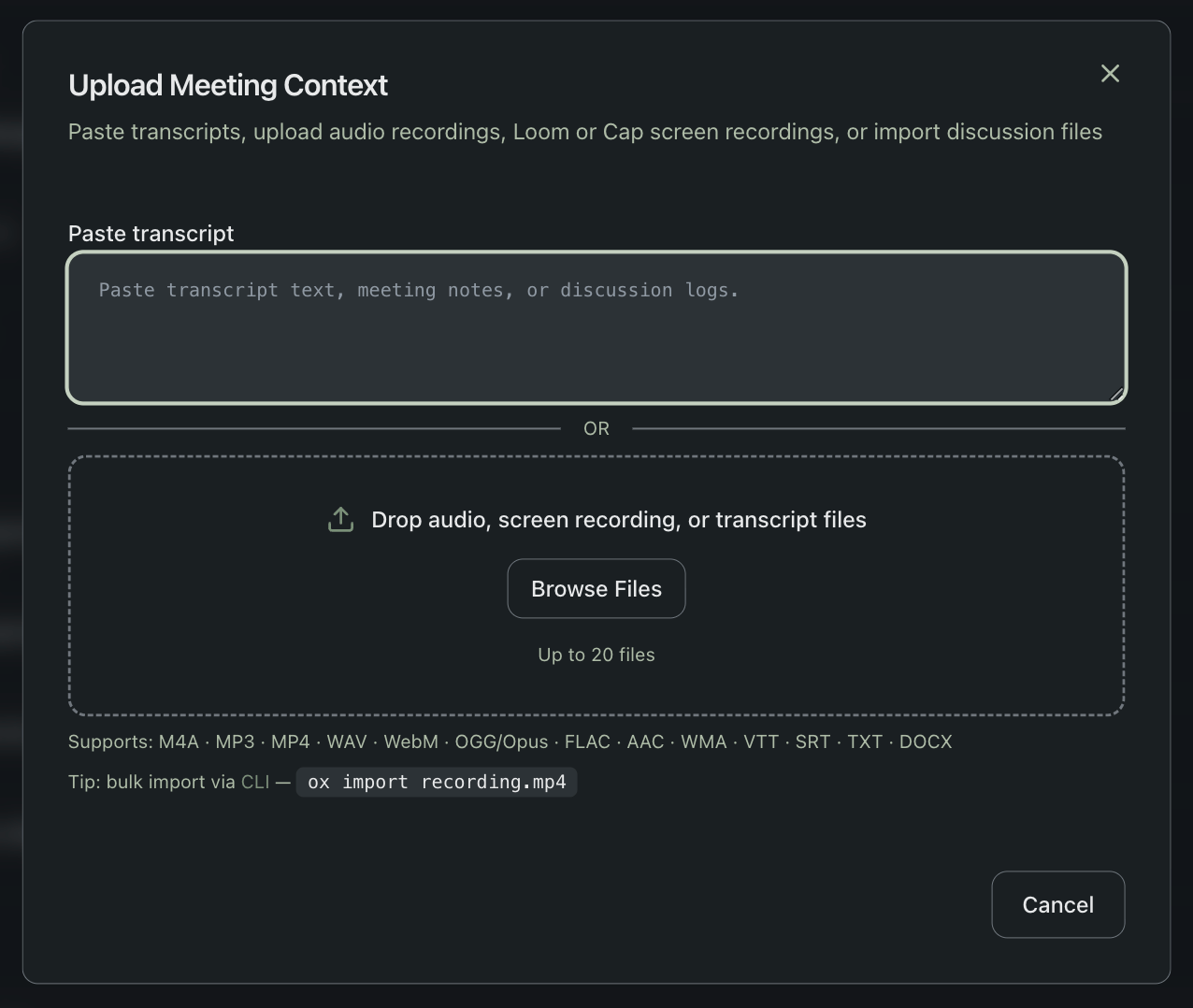
- Go to your team's Media section at sageox.ai
- Click Upload
- Drag your recording into the upload area (or click Browse Files)
- Add a descriptive title, this is how coworkers and AI coworkers find your recording
Processing starts automatically.
Import from URL
For Loom, Figma, and Cap recordings:
- Go to your team's Media section
- Click Import
- Paste the share URL
- Add a descriptive title
SageOx downloads the video server-side and processes it automatically. No need to download and re-upload.
Supported formats
File upload
| Type | Formats |
|---|---|
| Video | MP4, WebM, MOV, MKV |
| Audio | MP3, WAV, M4A, OGG, FLAC, AAC, WMA |
| Transcript | VTT, SRT, TXT, MD, DOCX (skips transcription) |
URL import
| Source | URL pattern |
|---|---|
| Loom | loom.com/share/... |
| Figma | figma.com/... |
| Cap | cap.so/... |
Limits
| Limit | Value |
|---|---|
| Max file size | 1000 MB |
| Batch upload | Up to 20 files |
| Recommended size | Under 100 MB for fastest processing |
Smaller files process faster. 720p at 15fps is the sweet spot. See Cap Setup for optimal recording and export settings.
What happens after upload
SageOx automatically:
- Extracts audio and transcribes with speaker identification
- Detects scene changes and extracts representative keyframes
- Analyzes keyframes for UI elements, code, and visual context
- Generates a summary with chapters, decisions, and action items
- Commits artifacts to your Team Context
You can track progress in the pipeline view. Processing typically completes within a few minutes.
How recordings get used
Coworkers and AI coworkers do not watch videos every time, they read the structured output:
-
Transcript text for searchable narration
-
Keyframe descriptions for visual context
-
Summaries for decisions and action items
-
MCP-connected tools can search the transcript, summary, and visual context.
-
Repo-based AI coworkers can reference the recording while implementing features or explaining decisions.
-
In the web app, humans can open the source recording, transcript, and keyframes directly.
What's next
- Video Import: overview of all import options
- Loom Import: Loom-specific guidance
- Cap Setup: optimal recording settings
- Discussions: where imported recordings live
Loom import
Import Loom recordings into SageOx with a single URL paste. Automatic transcription, keyframe extraction, and AI summarization turn your Loom walkthroughs into searchable team knowledge.
Video import via CLI
Import Loom, Cap, and video URLs directly from the command line with ox import. Check processing status, list recordings, and integrate video import into scripts.