

Already recorded on a Pocket (or any pocket voice recorder)? Copy the audio files off the device over USB and upload them to SageOx, where each one is transcribed and turned into decisions, action items, and Team Context.
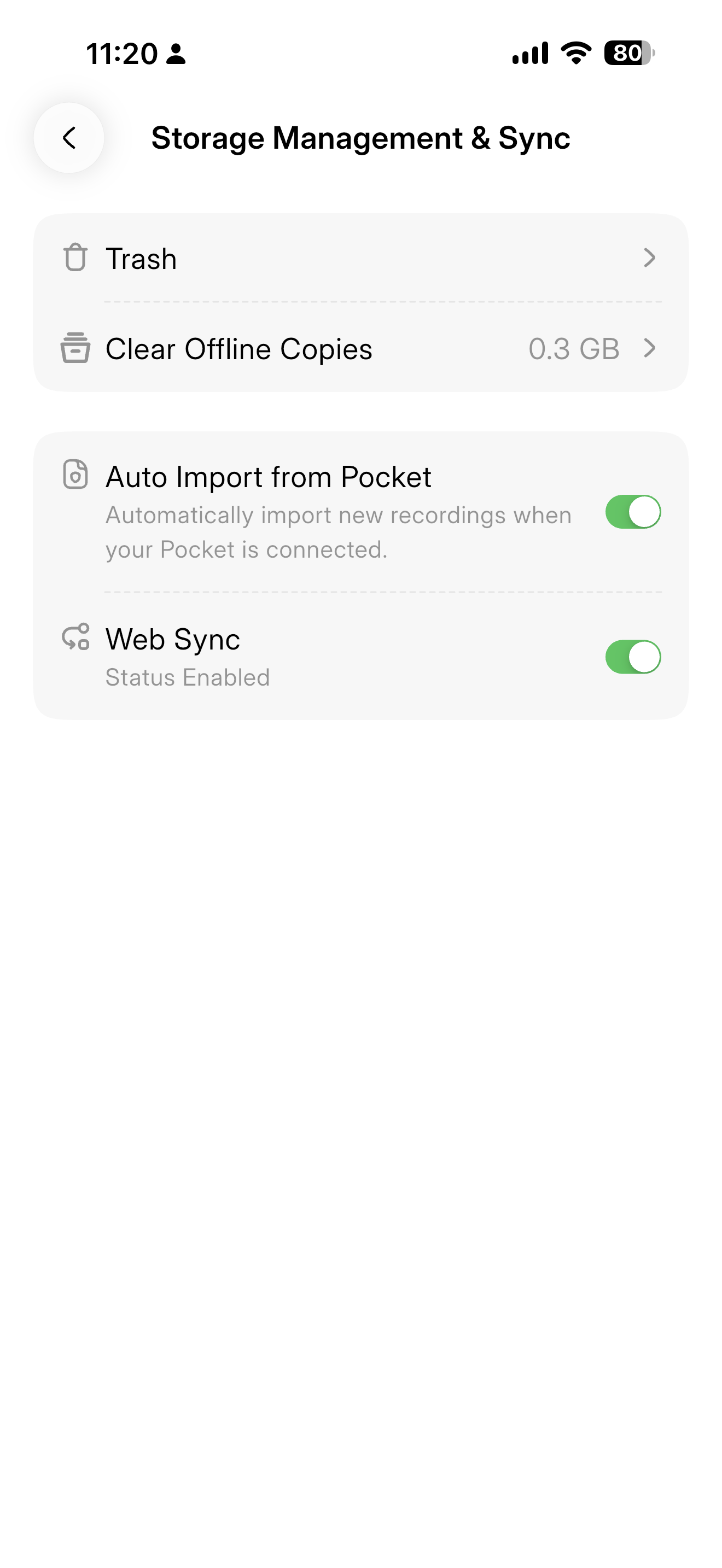
Turn on Web Sync first (Pocket)
Do this once, in the Pocket app, before you plug the device into your computer:
- Open the Pocket app and go to Storage Management & Sync.
- Turn on Web Sync. Confirm its status reads Enabled (as shown above).
With Web Sync enabled, the Pocket exposes its recordings so your computer can read them when it's connected over USB.
No USB cable handy? Use Auto Import from Pocket in the Pocket app instead; it syncs recordings without connecting the device to a computer. USB is the fastest path for a batch of existing files; Auto Import is the hands-off alternative.
Copy the files over USB
These steps are the same for most USB voice recorders, the device mounts as a plain drive and you drag the audio files off it:
- Connect the recorder to your computer with its USB cable.
- On the device, switch to Mass Storage mode (some recorders label this PC, Data Transfer, or USB Drive). The recorder now shows up as a removable drive.
- Open the drive and find the audio folder, usually named RECORD or VOICE.
- Drag the
.mp3files you want into a folder on your computer. - Eject the drive and unplug the recorder.
| Your device says | It means |
|---|---|
| Mass Storage / USB Drive | Mount as a drive so you can copy files |
| PC / Data Transfer | Same thing, the "connect to a computer" mode |
| MTP / Charge only | Switch away from these, the drive won't mount for file copy |
Upload to SageOx
Once the .mp3 files are on your computer, bring them into SageOx:
- Go to your team's Media section.
- Click Upload.
- Drag in the
.mp3files you copied off the Pocket, or browse for them. - Add a title and tag participants.
- Confirm to start processing.
SageOx transcribes each recording and runs it through the full pipeline. See Audio + transcript upload for supported formats, size limits, and the CLI path (ox import).
SageOx reads the recording's original capture time from the file when it can. If a date looks off, open the recording and click its date in the header to correct it, an inferred date shows an inferred · confirm hint so you know it was a best guess.
What's next
- Audio + transcript upload: formats, size limits, and importing from the CLI
- Discussions: what a recording becomes once it's processed
- Distillation: how recordings turn into team memory
Audio + transcript upload
Upload an existing audio file or transcript into SageOx from the web app or the CLI. Audio is transcribed; transcripts skip straight to extraction.
Video import
Import Loom, Figma, and Cap recordings into SageOx. Automatic transcription, keyframe extraction, and AI summarization turn video walkthroughs into searchable team knowledge.